Unlocking Your Zcash: A Step-by-Step Guide to Using the Zcash Shielded App on Ledger
November 4, 2024
–
6 min read
Unlock and manage your Zcash securely with the Zondax-developed Zcash Shielded App for Ledger. This step-by-step guide covers everything from setting up your environment to handling transactions, ensuring privacy and control. Dive into shielded Zcash today!
The Zcash Shielded App developed by Zondax makes managing your funds through Ledger secure. This guide will walk you through everything you need to unlock, handle, and transfer your Zcash tokens.
Ready to get started?
Let’s dive in!
Important to note: The ZCash app is not yet compatible with Orchard
1. Install Curl (if missing): Begin by ensuring Curl is installed on your system for network communication
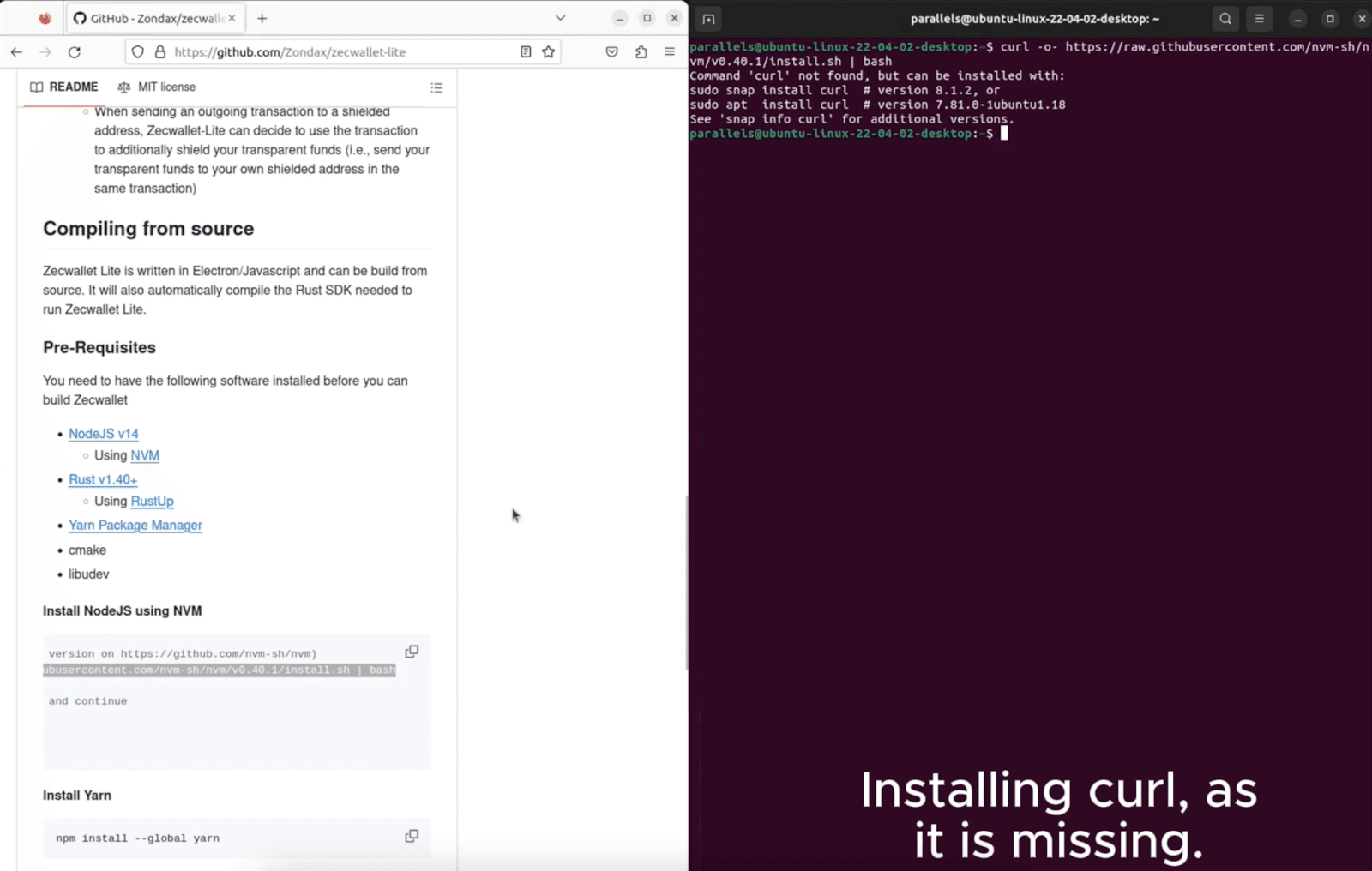
2. Install NVM (Node Version Manager): Download and set up NVM to manage different NodeJS versions easily. Restart your terminal to apply changes.
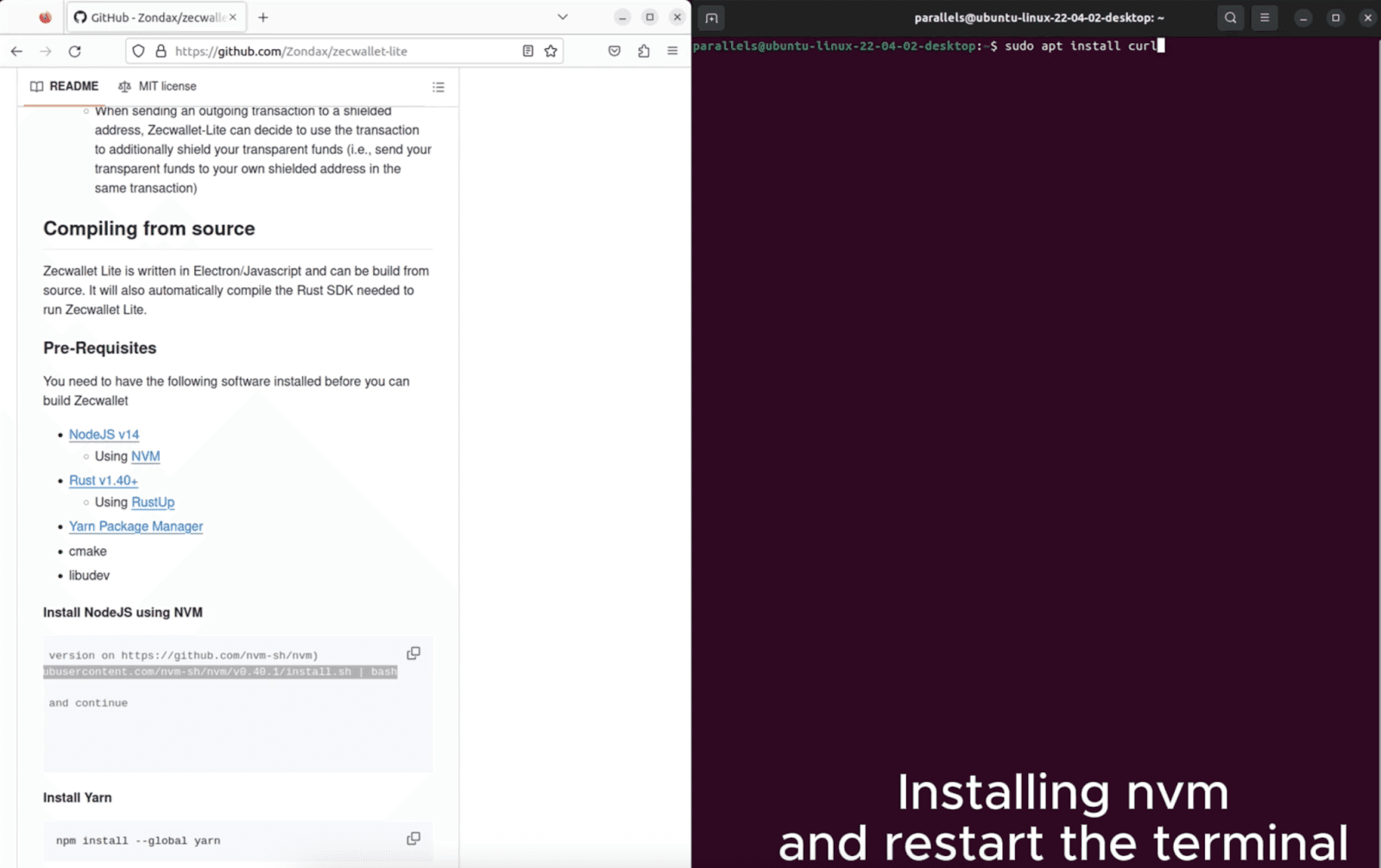
3. Install NodeJS 14 Using NVM: Run the command to install NodeJS 14 via NVM, ensuring compatibility with the app.
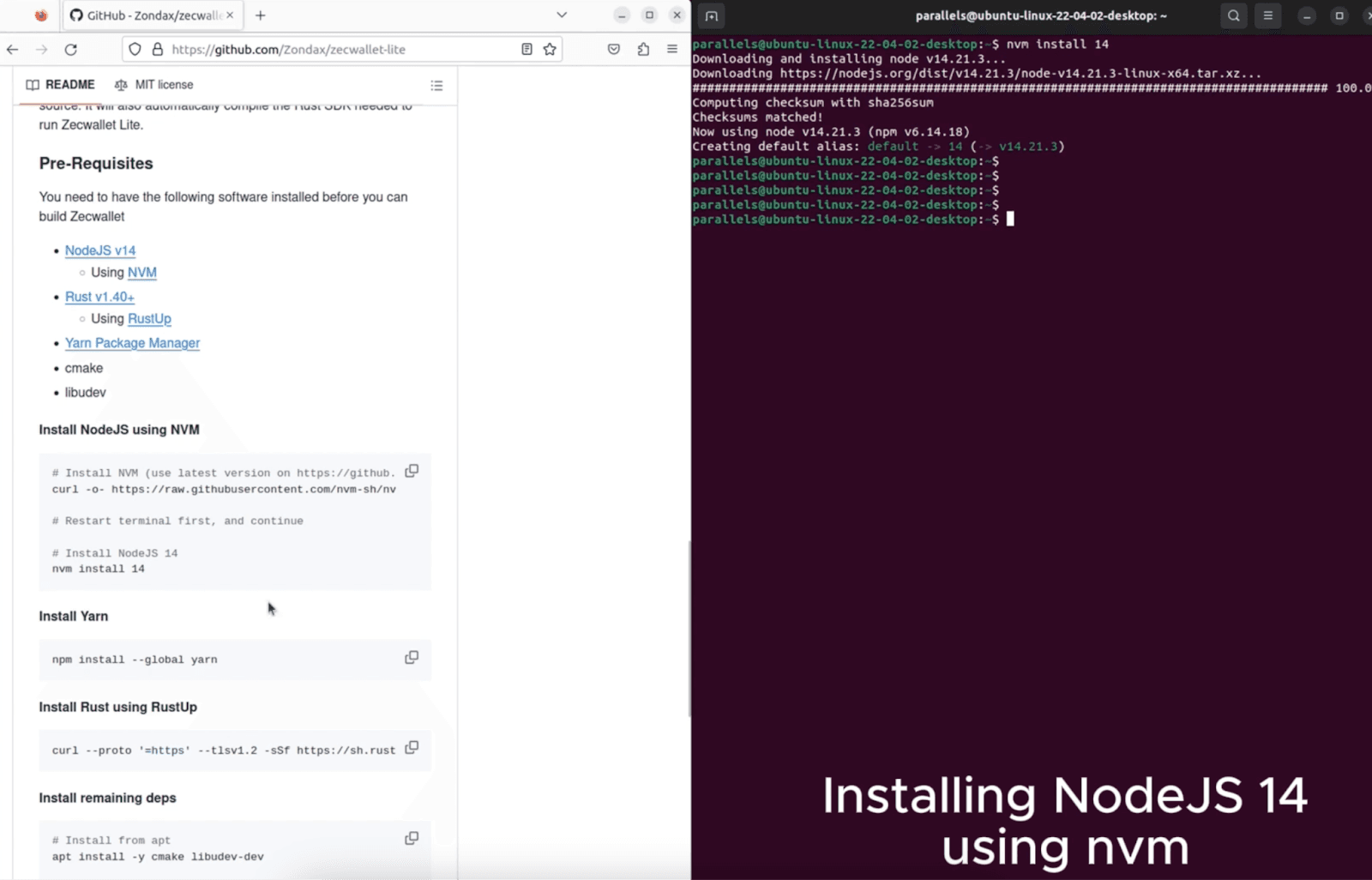
4. Install Yarn: Next, install Yarn to handle JavaScript dependencies efficiently.
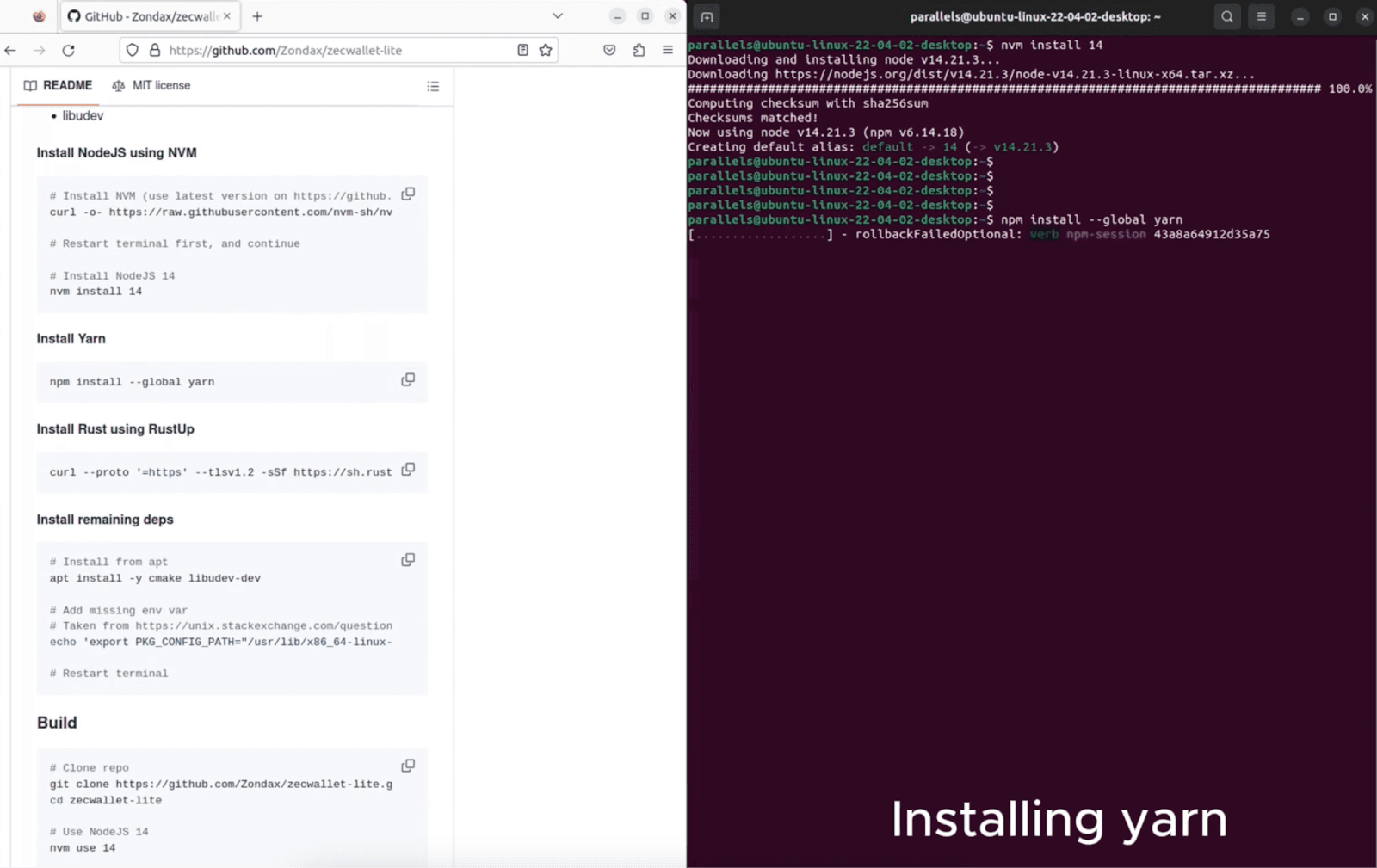
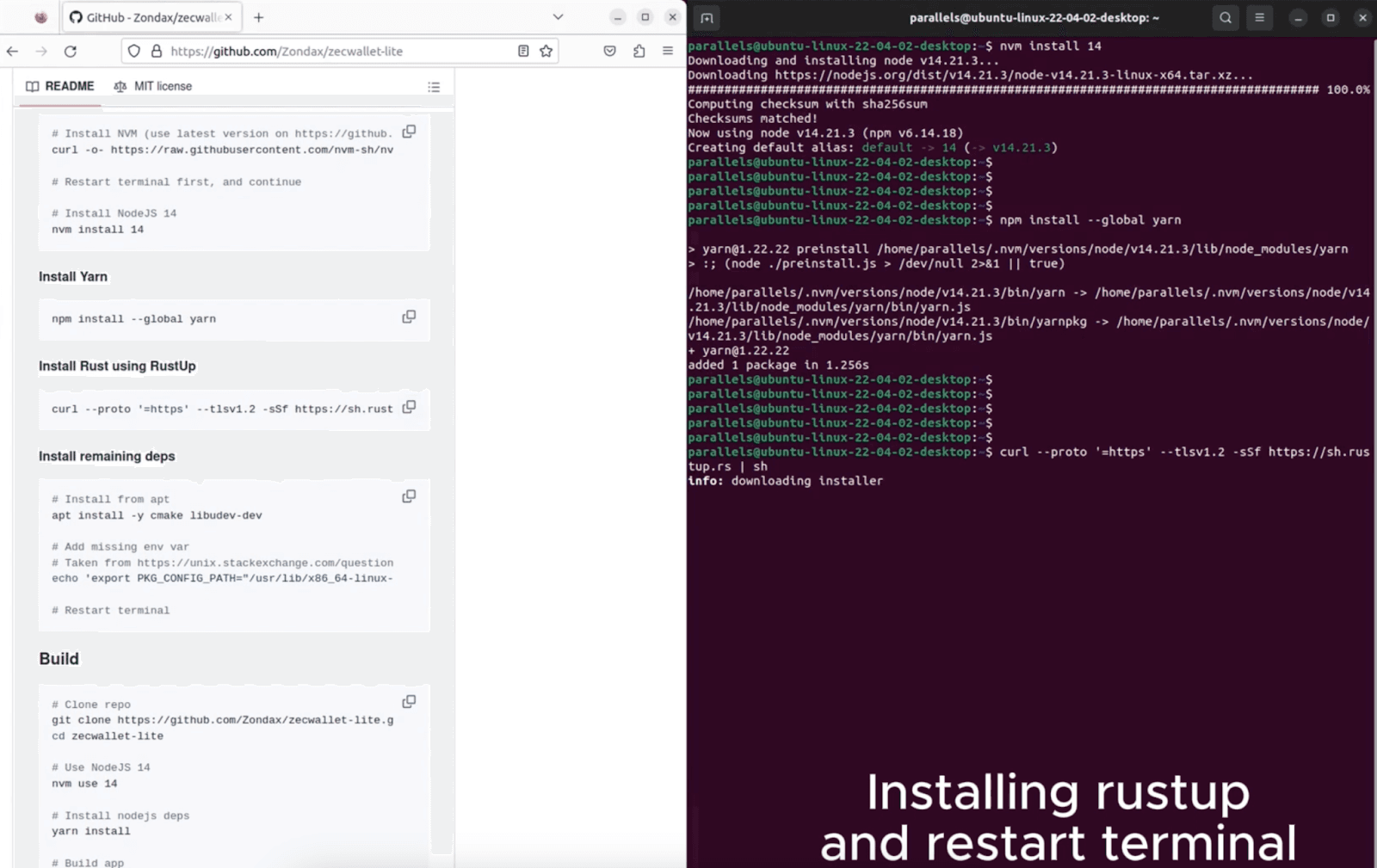
5. Install Rust: Download Rust for building Rust-based components. Remember to restart the terminal after installation.
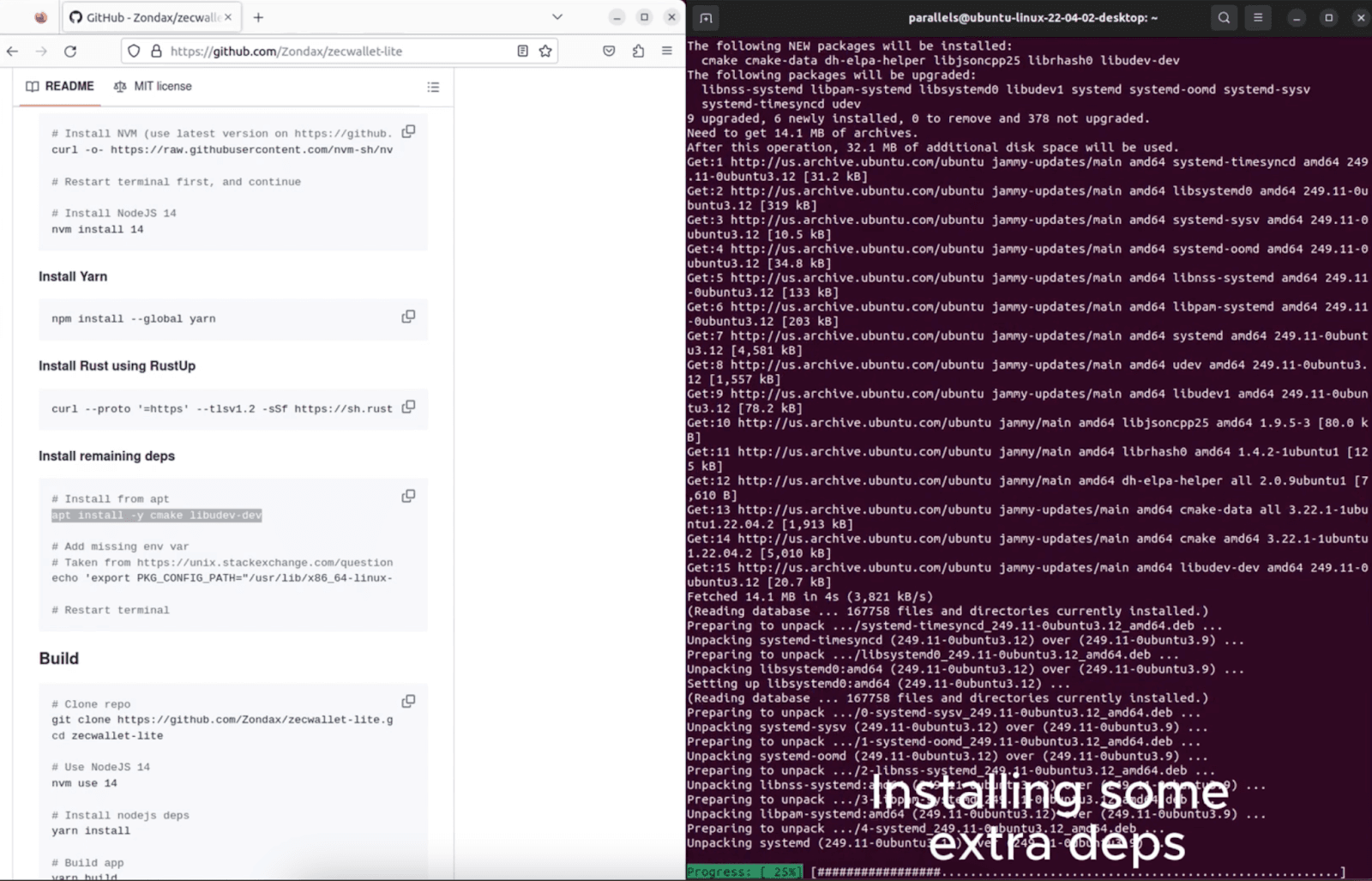
6. Install Additional Dependencies: Run the commands for the extra dependencies needed by the app.
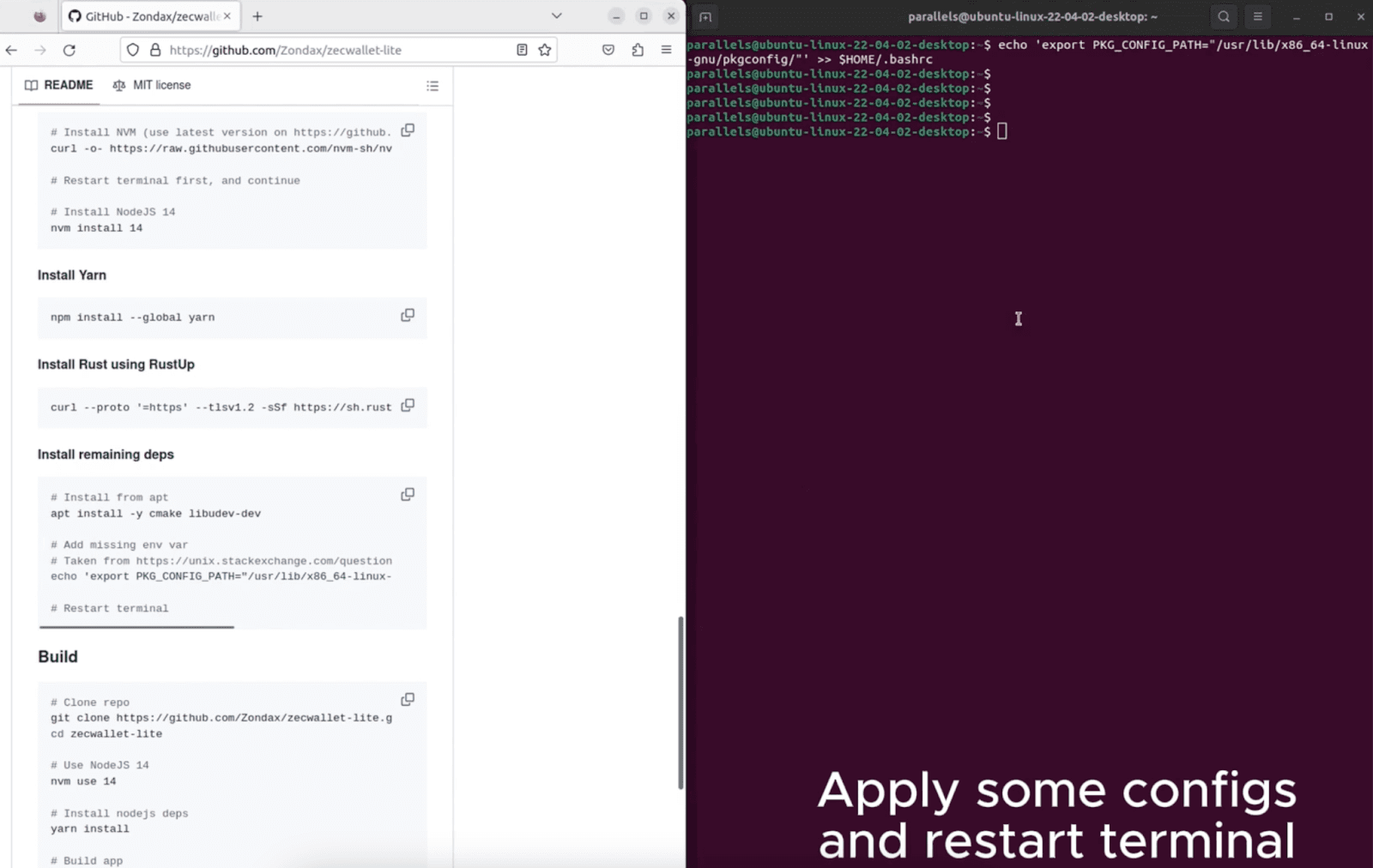
7. Apply Configurations: Make sure to apply any required configurations (e.g., PATH updates or permissions), then restart the terminal.
8. Clone the ZecWallet Repository: Use Git to clone the ZecWallet repository, which houses the necessary files for this tutorial.
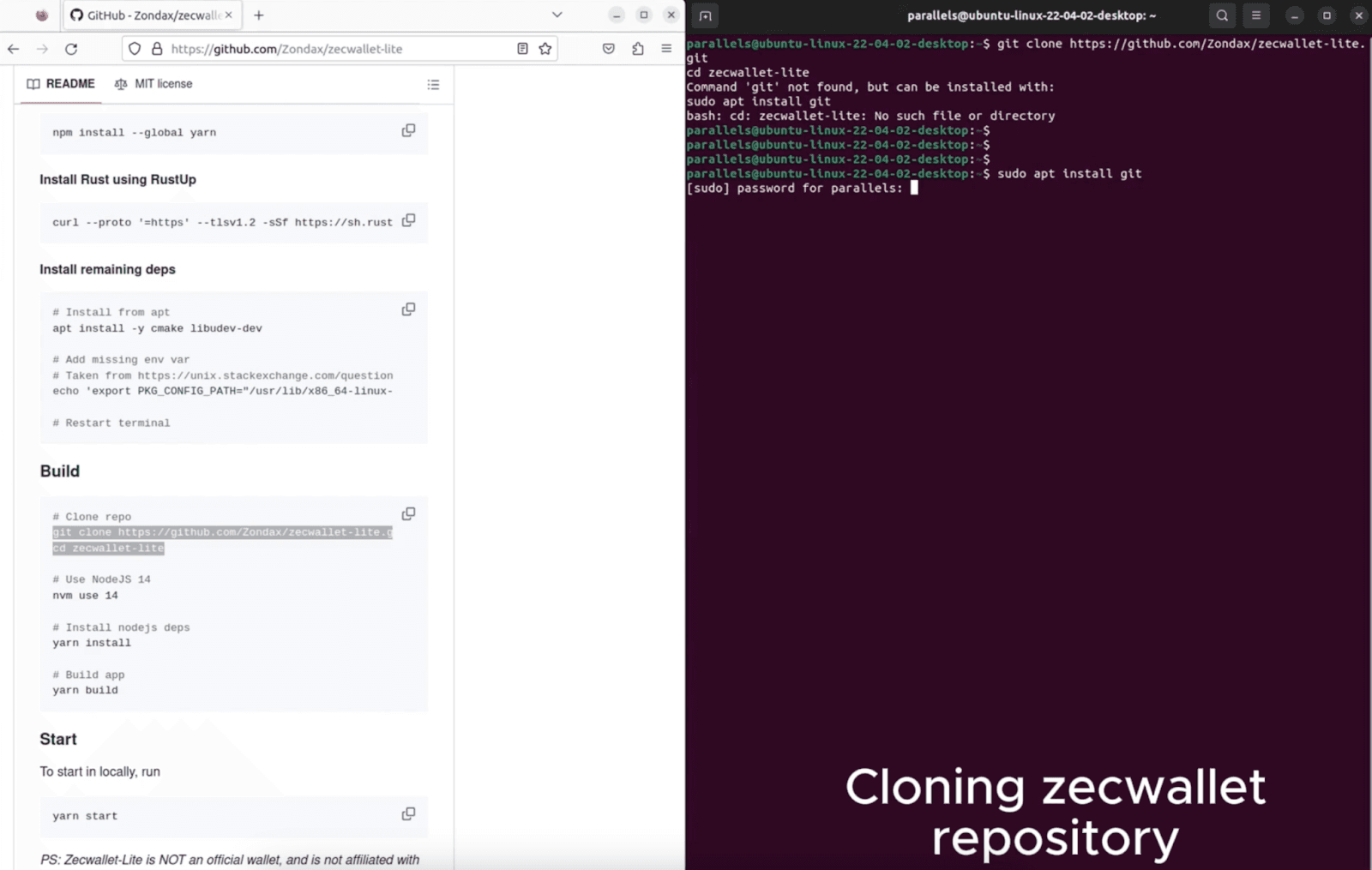
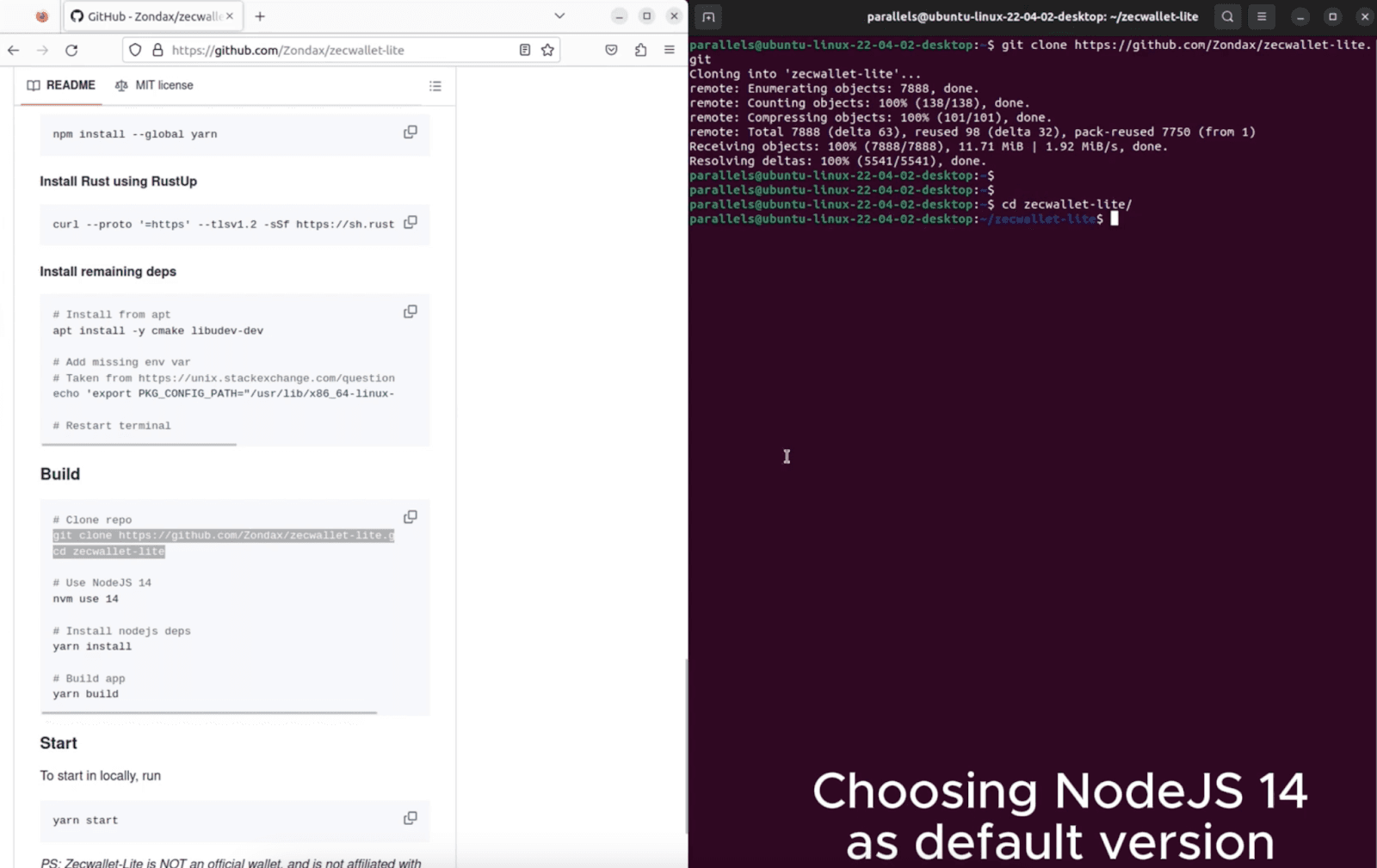
9. Set NodeJS 14 as Default: Select NodeJS 14 as the default Node version for this project to ensure compatibility.
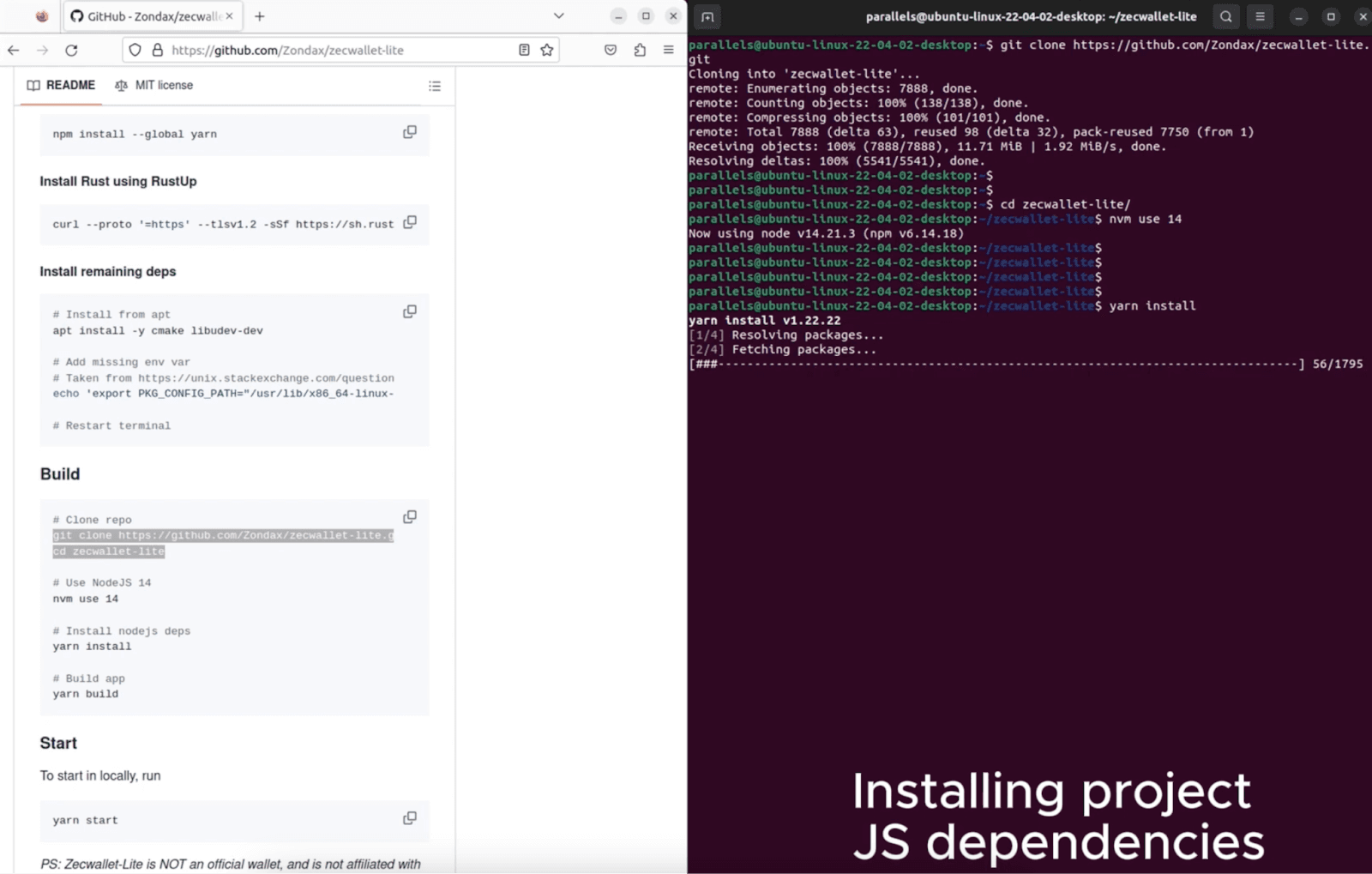
10. Install Project JS Dependencies: Use Yarn to install all project-specific JavaScript dependencies.
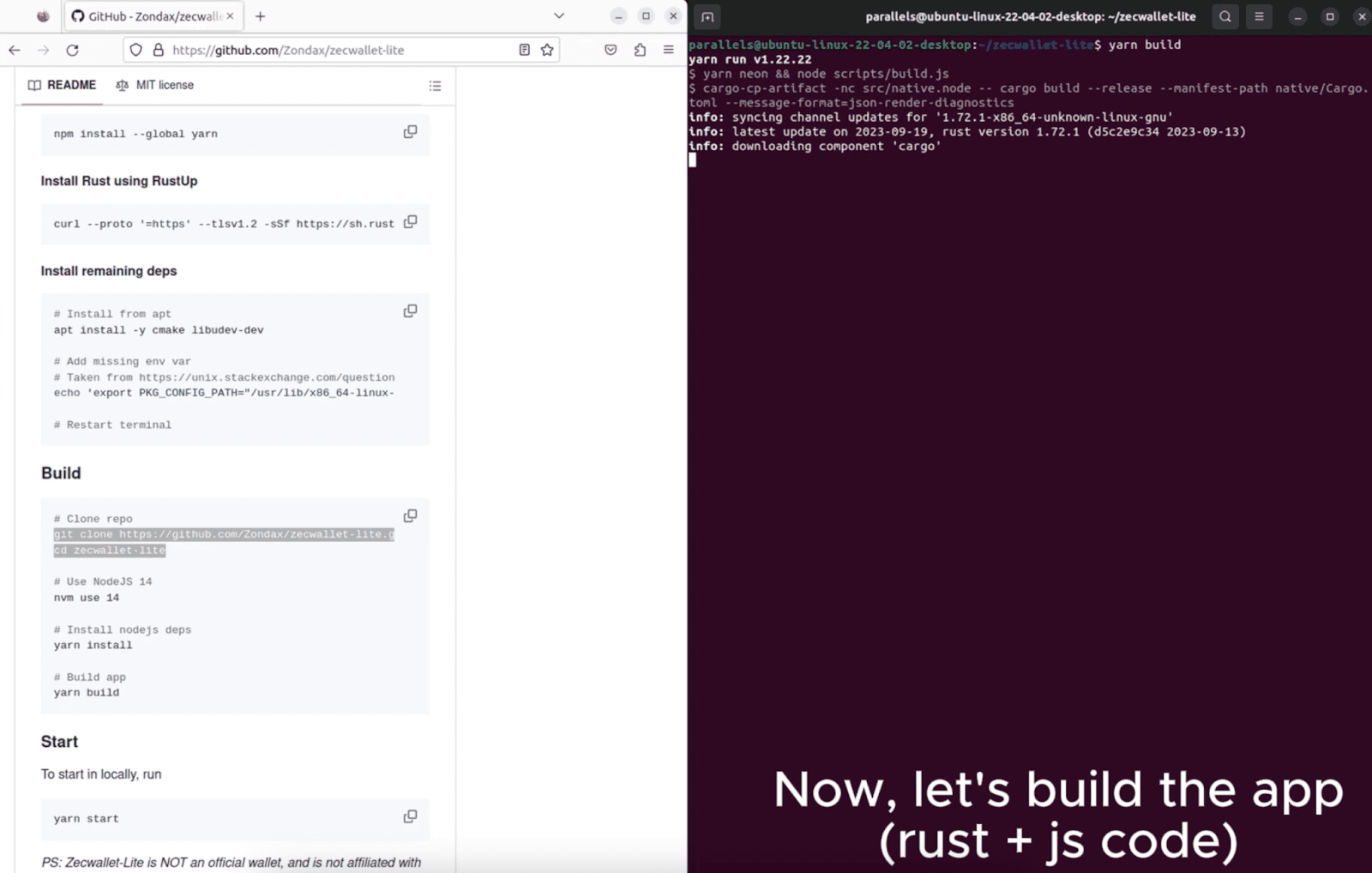
11. Build the App (Rust + JS Code): Start the app build process. This may take a few minutes.
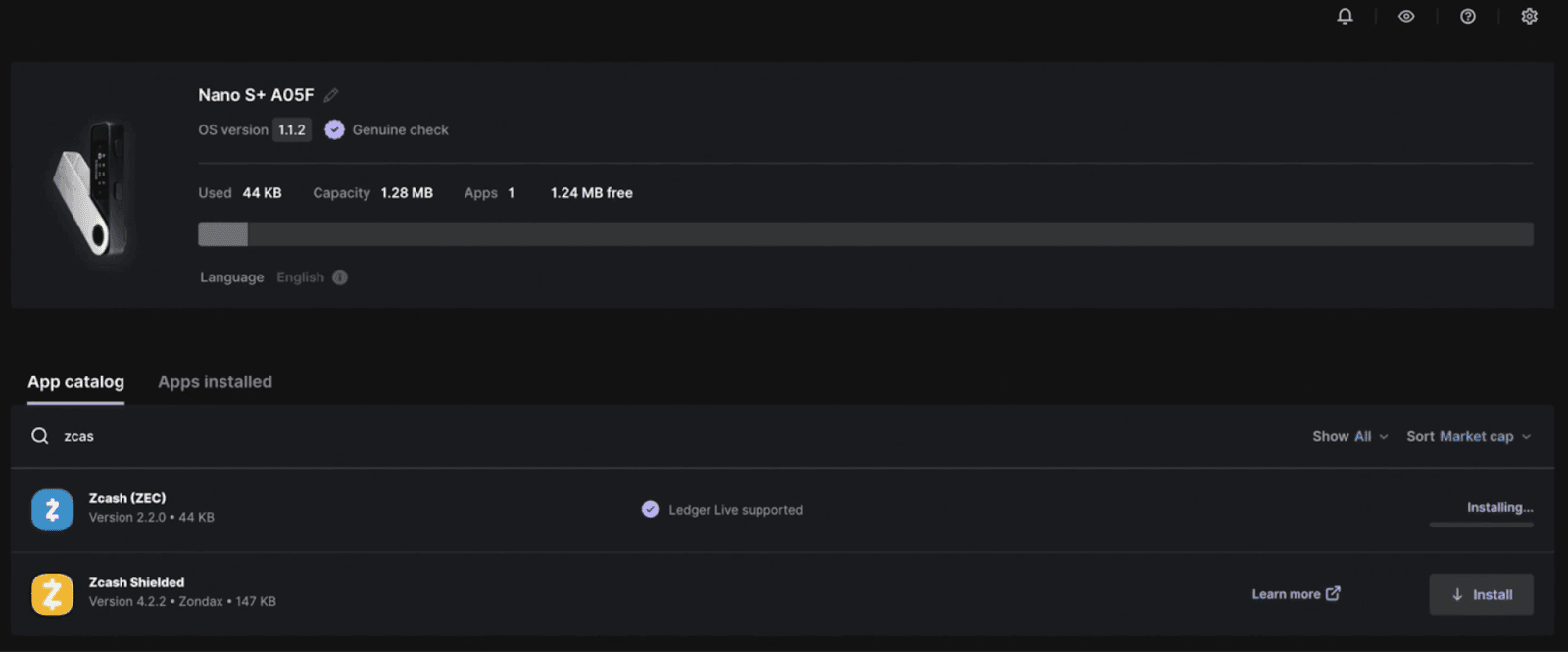
12. Install the Zcash App on Ledger Live: Open Ledger Live and install the standard Zcash App (not the Zcash Shielded App) for initial setup.
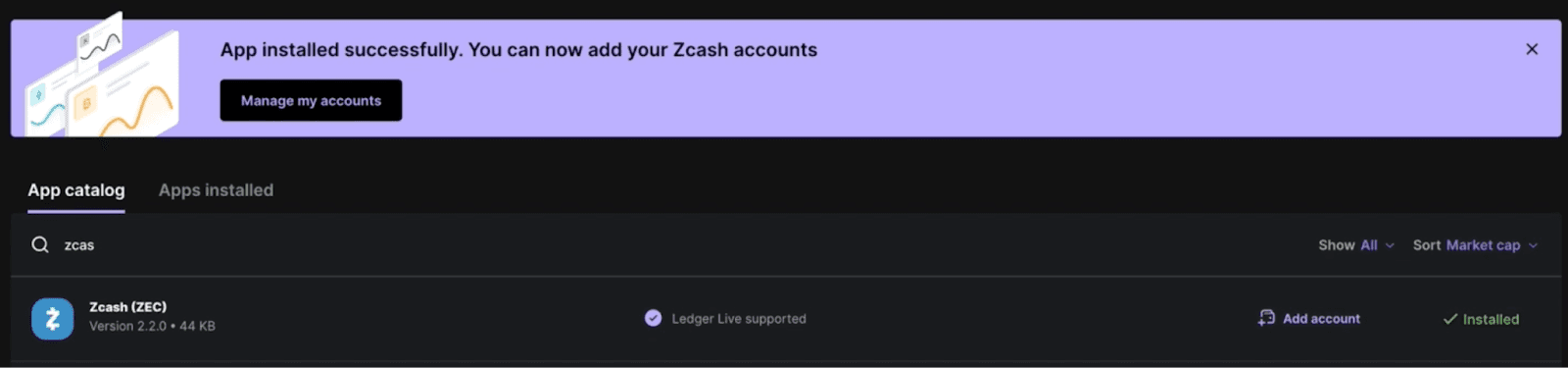
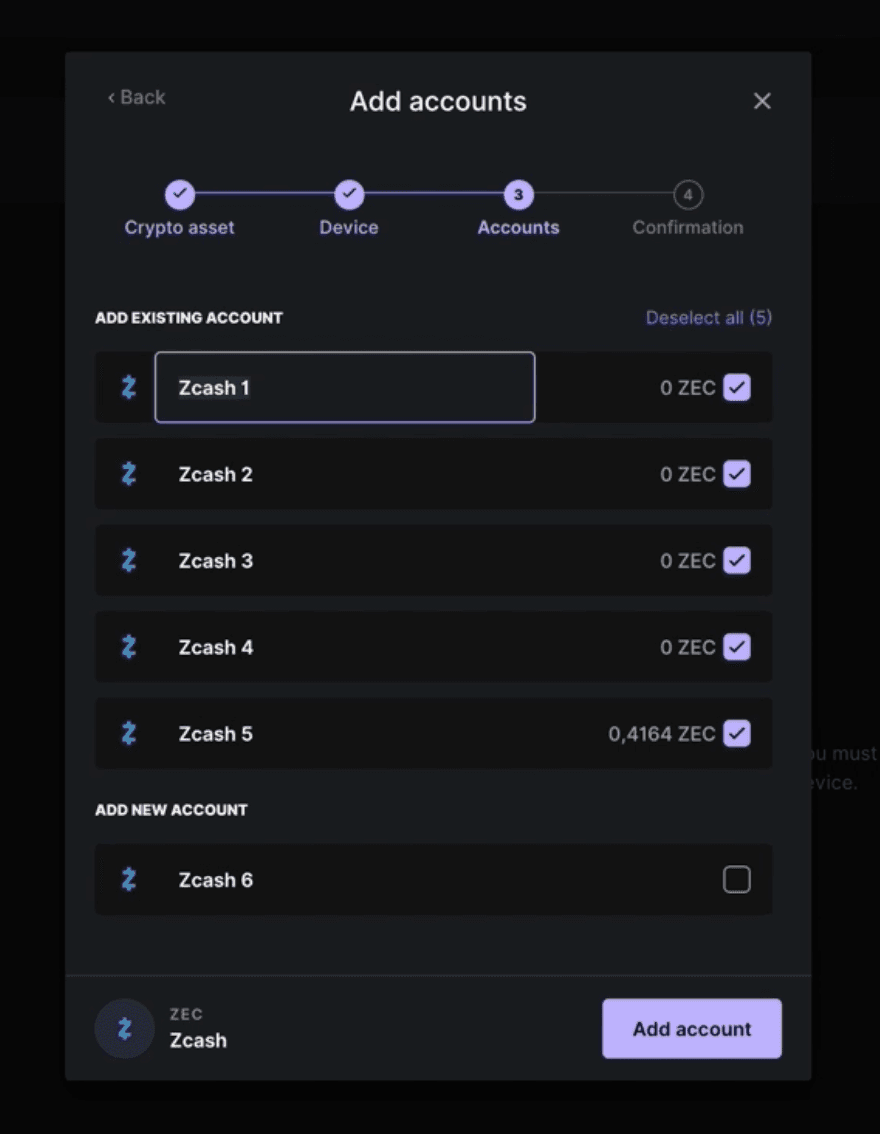
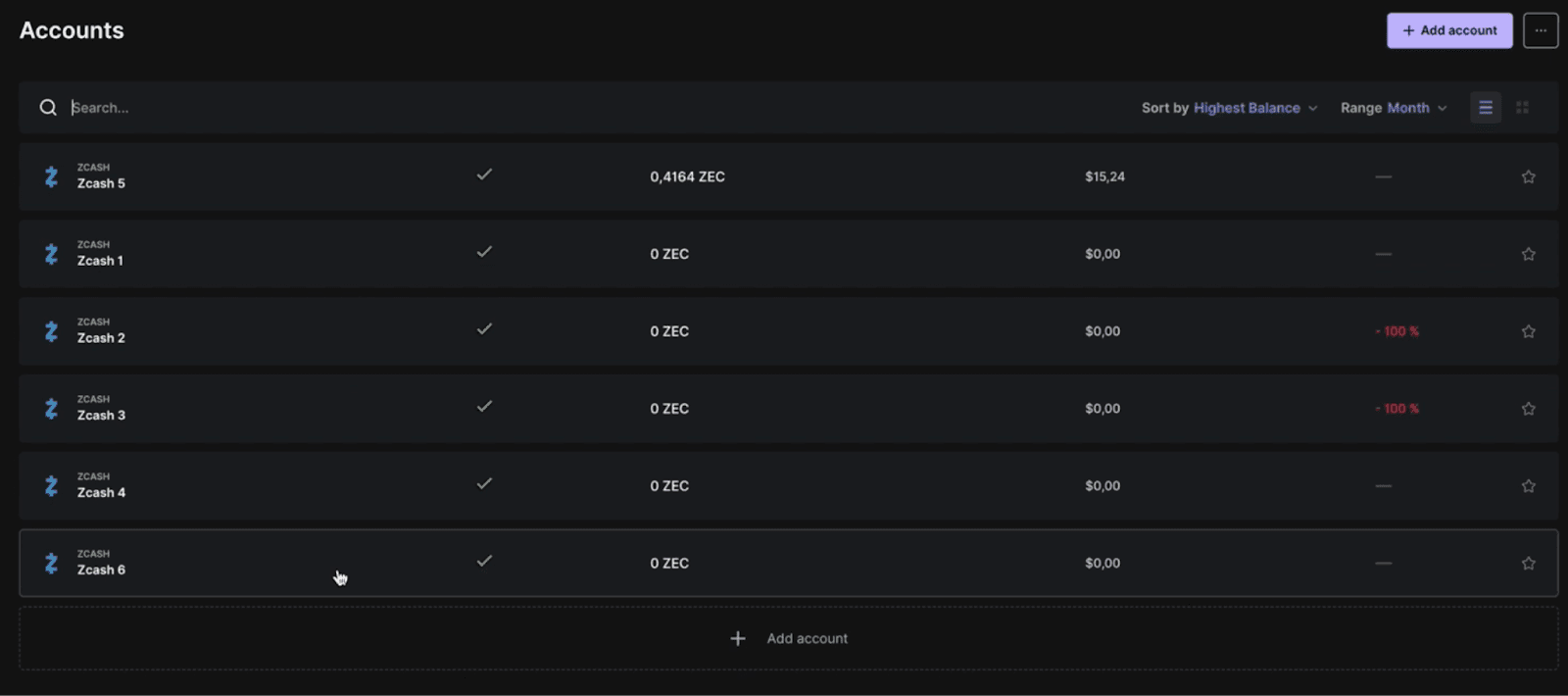
13. Add Your Zcash Accounts: Link your Zcash accounts, which will display your transaction history.
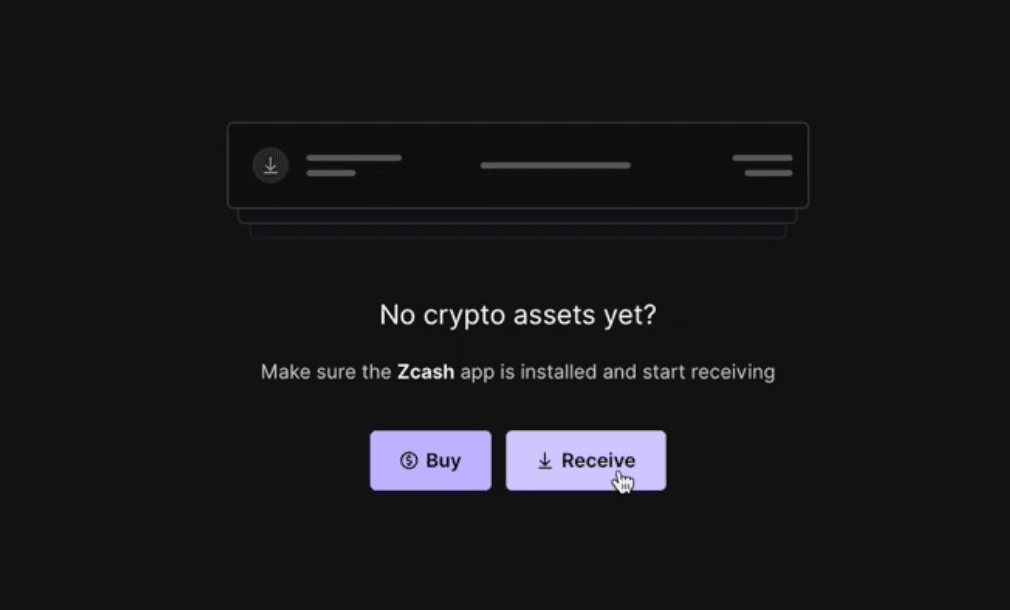
14. Prepare to Move Funds: Identify an empty account and obtain its destination address for secure transfers.
15. Send Funds to the Destination Address: Back in your accounts, initiate a transaction to the address. Approve it with your Ledger device.
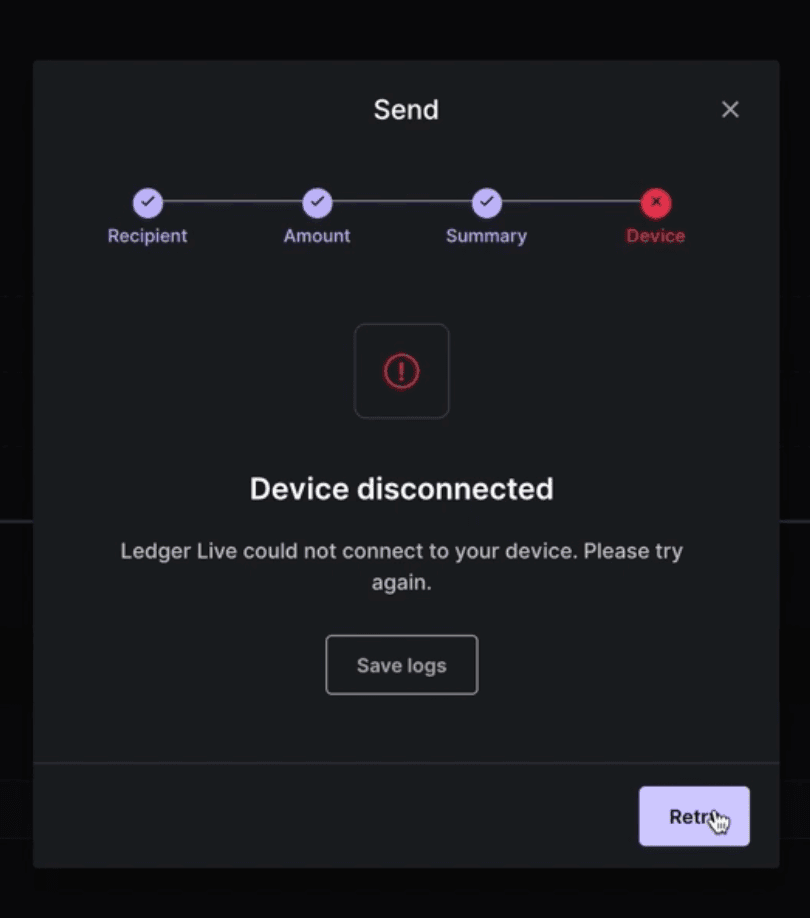
16. Note the App Crash: The app may close unexpectedly after initiating the transaction. Don’t worry—your funds are now secured but locked.
Let’s send the transaction to be signed by the device
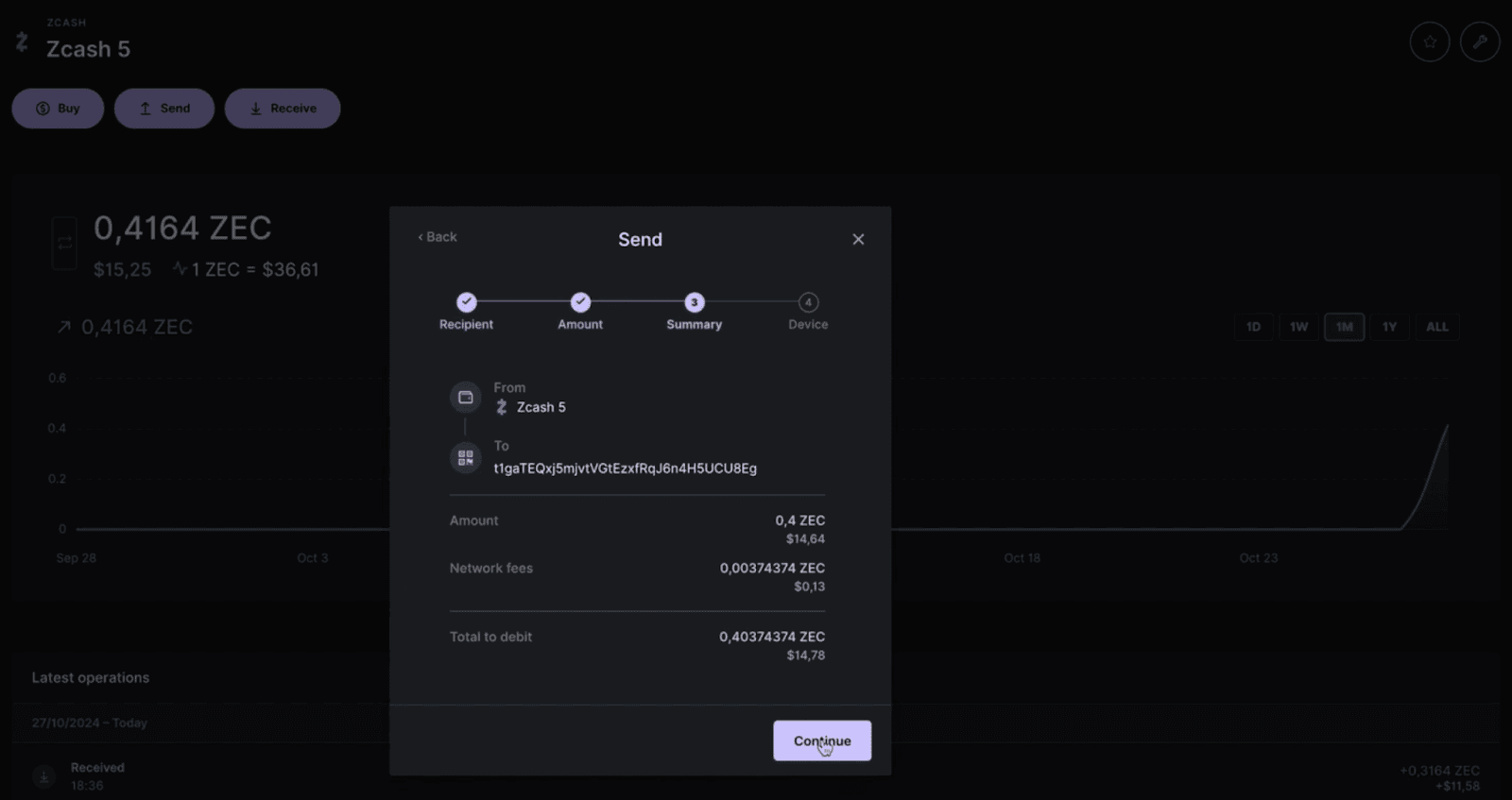
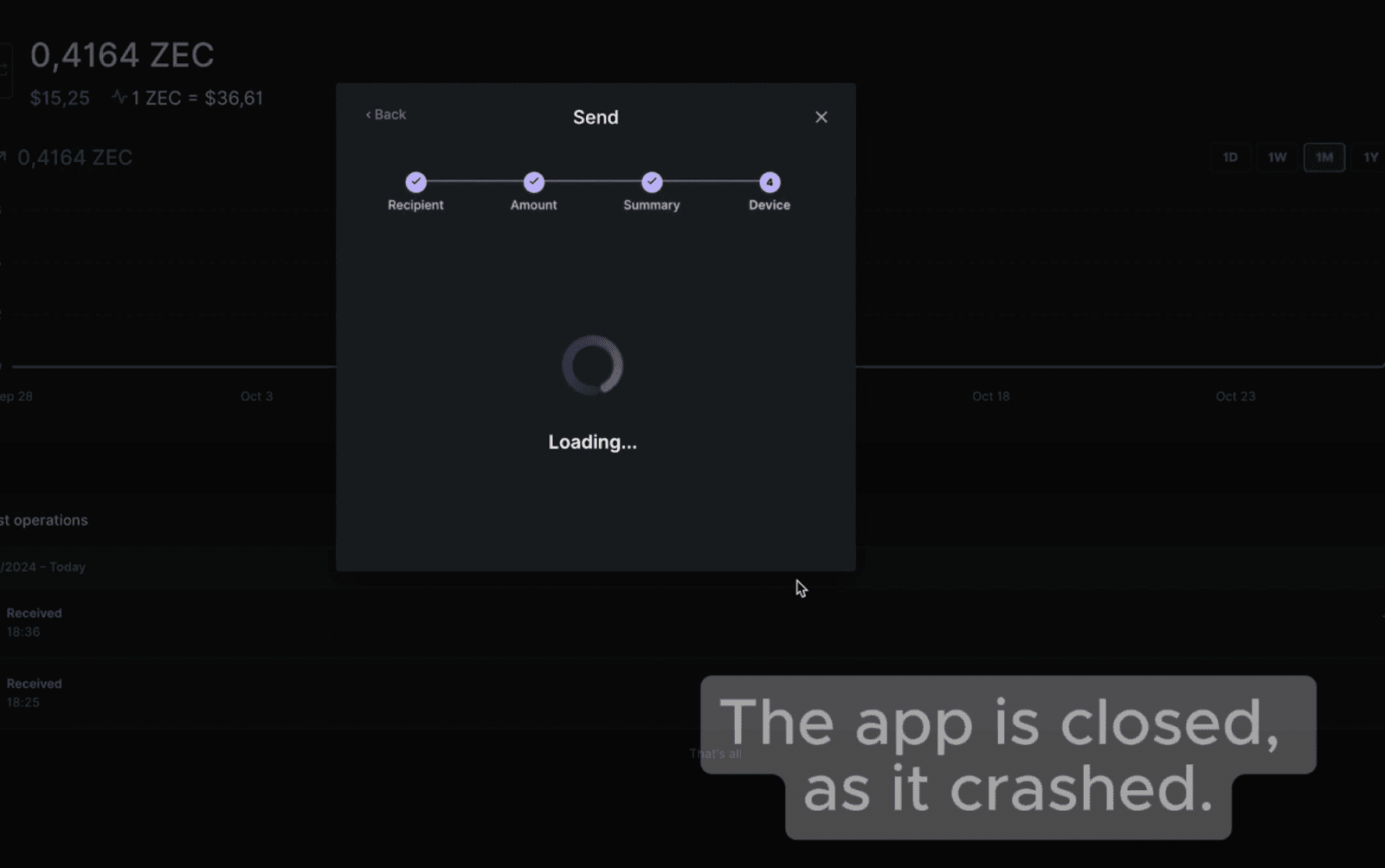
17. Confirm Locked Funds: You’ll notice that the funds have not been transferred... Therefore, they are locked, and cannot be moved.
Now, Unlocking with the Zcash Shielded App
18. Install the Zcash Shielded App: Make sure your Ledger is securely connected, then install the Zcash Shielded App.
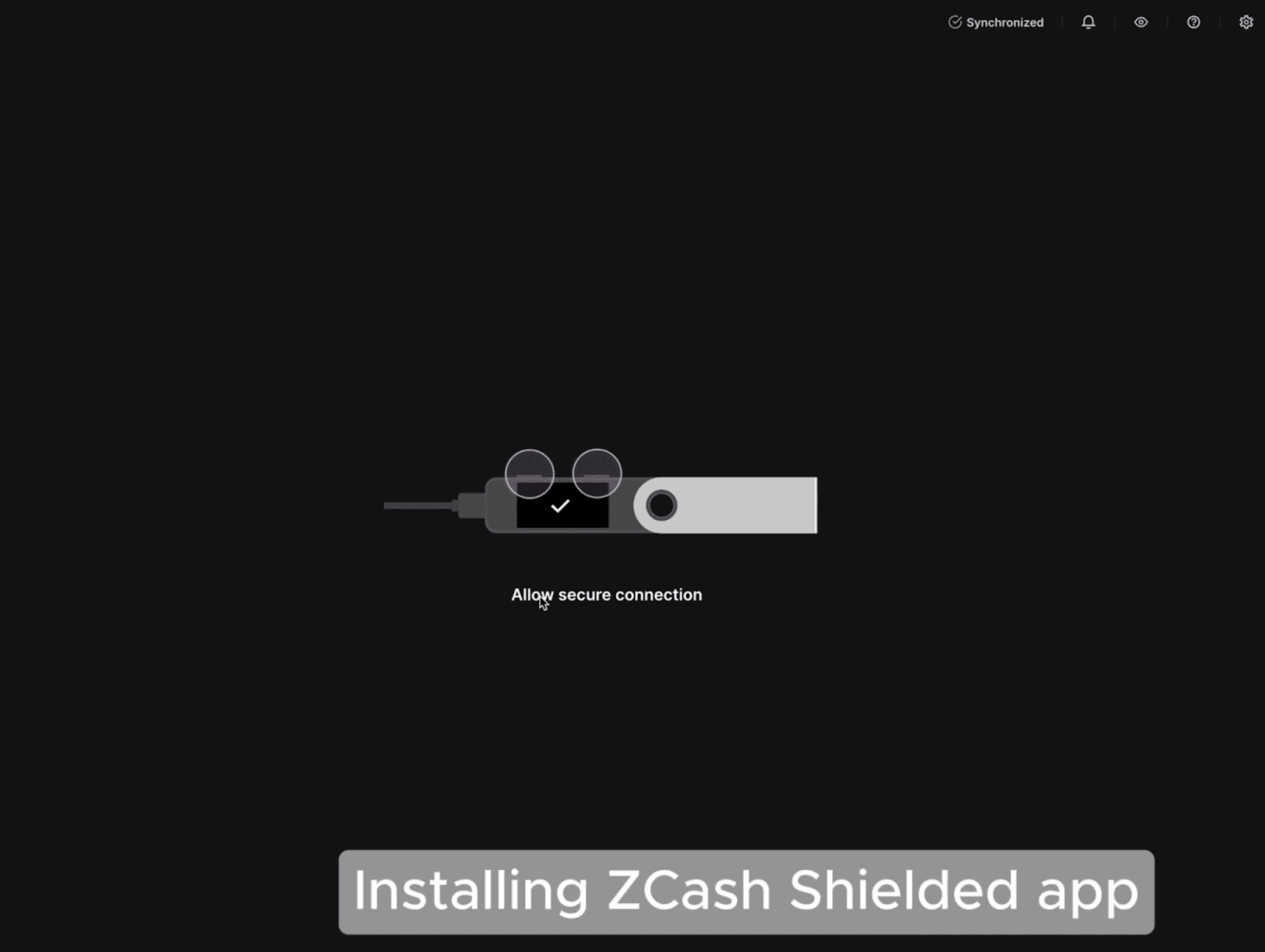
19. Open the Zcash Shielded App: Access the Shielded version of Zcash on Ledger Live—be careful to select the correct app.
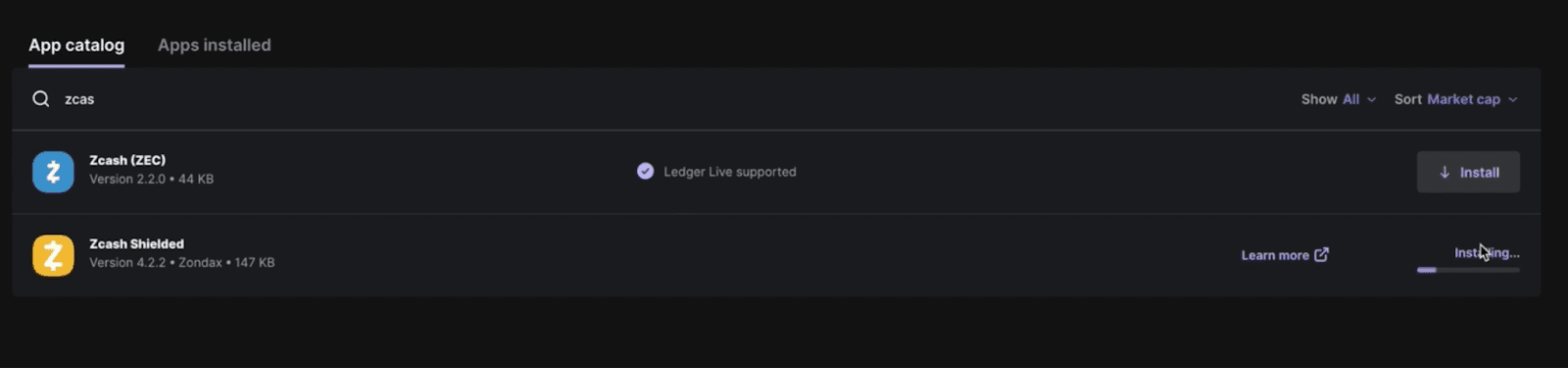
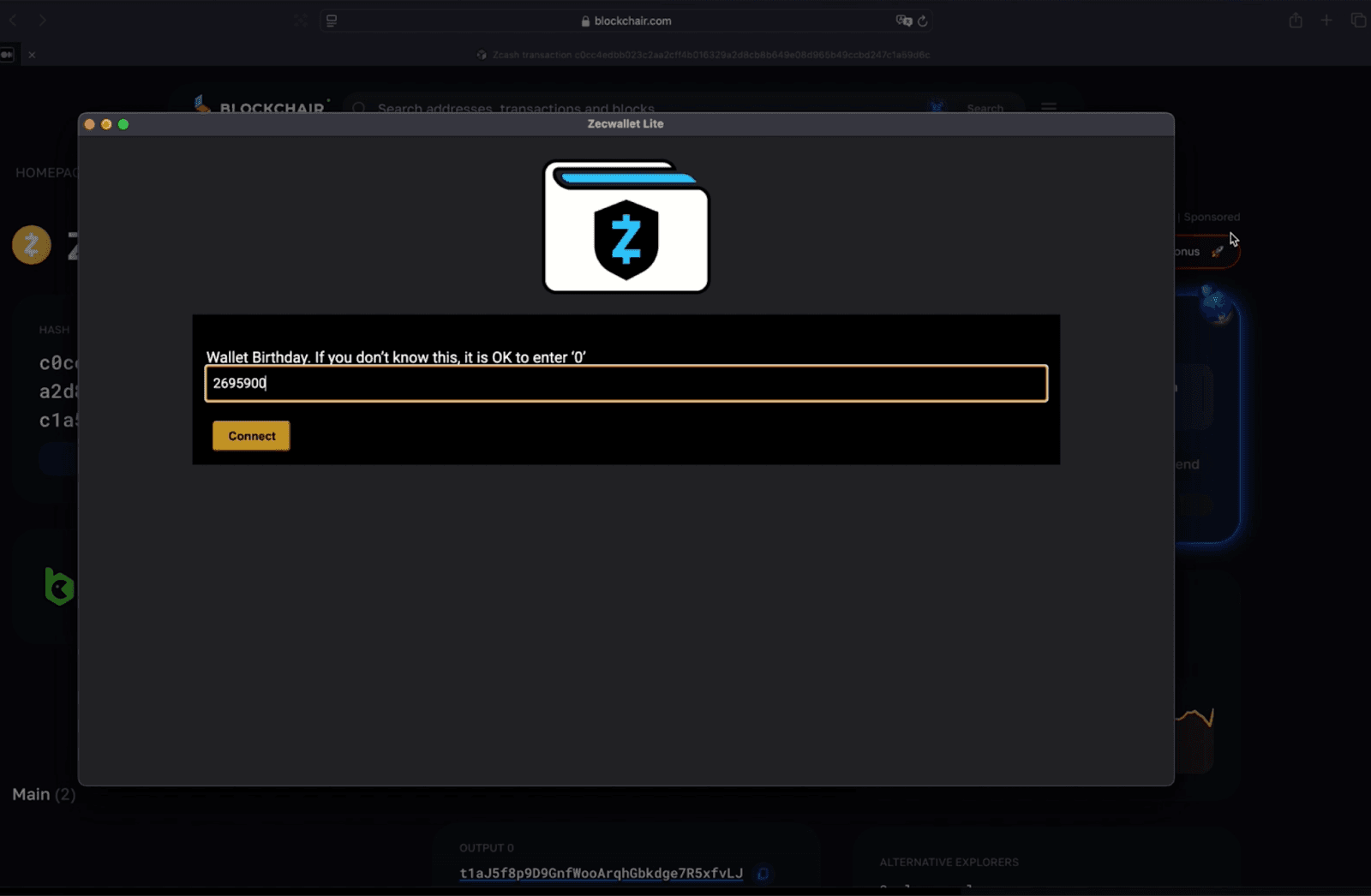
20. Find Your Account’s “Birthday”: Identify the earliest transaction (and block height) for the account from your Ledger’s transaction history. Note this “birthday” (e.g., block 2695924).
21. Initialize ZecWallet Using Block Height: Open ZecWallet and initialize it using the block height you’ve just noted.
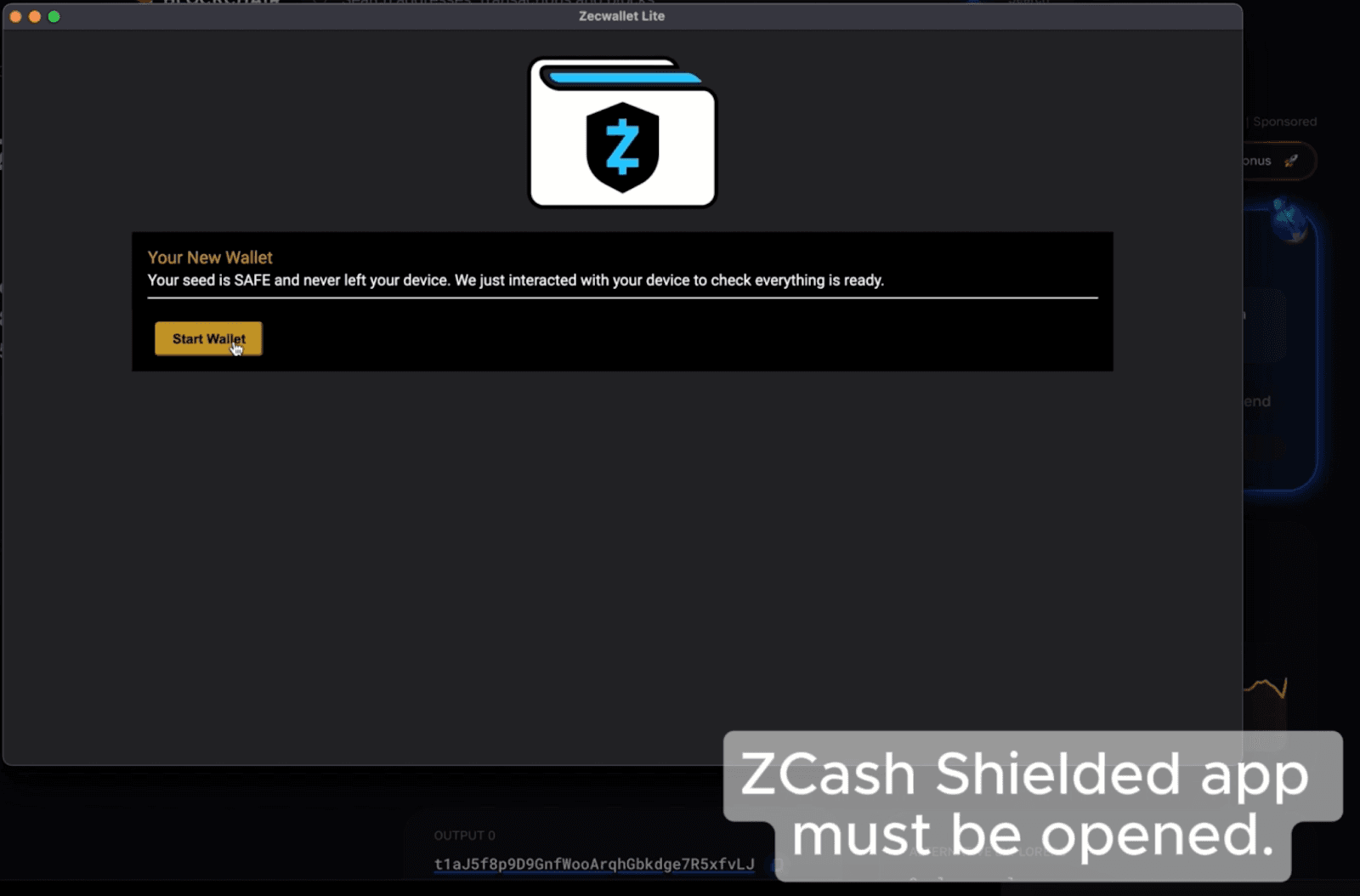
22. Confirm the Zcash Shielded App is Open: Ensure the Shielded App remains open on your Ledger device.
23. Derive the Address Holding Funds: In Zecwallet, click on “Receive” and select “Transparent.” Then, in Ledger Live, click on the tool icon at the top right and select “Edit account."
24. Copy the Fresh Address Path: Under “Advanced,” locate the “FreshAddressPath” and copy the address displayed.
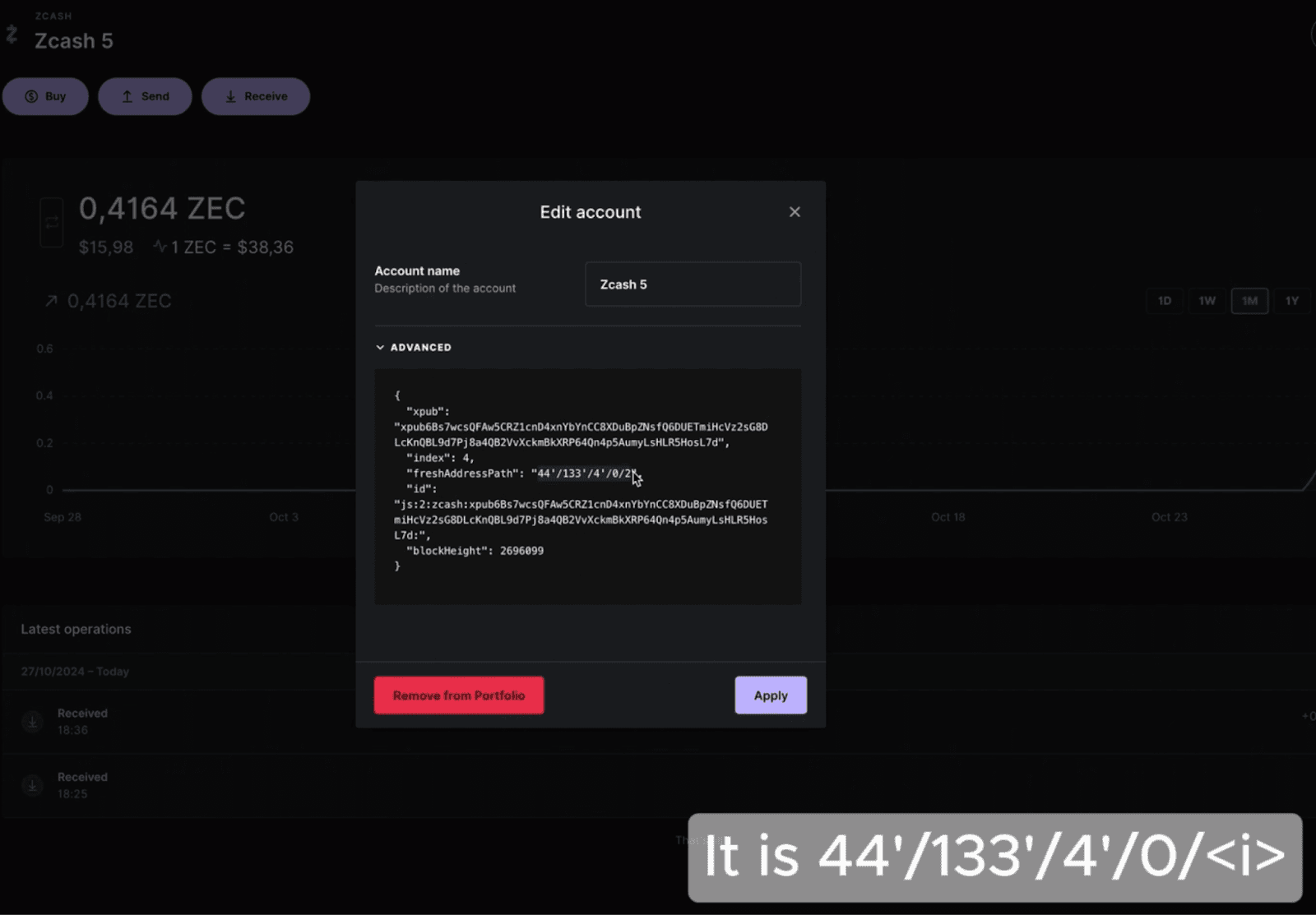
25. Add Two Addresses in Zecwallet: Return to Zecwallet and add two addresses as shown in the provided image.
26. Rescan the Chain for Balance: Ready? Initiate a rescan of the blockchain to reveal the account balance.
27. View Your Updated Balance: After the scan completes, you should see the updated balance reflecting your unlocked funds.
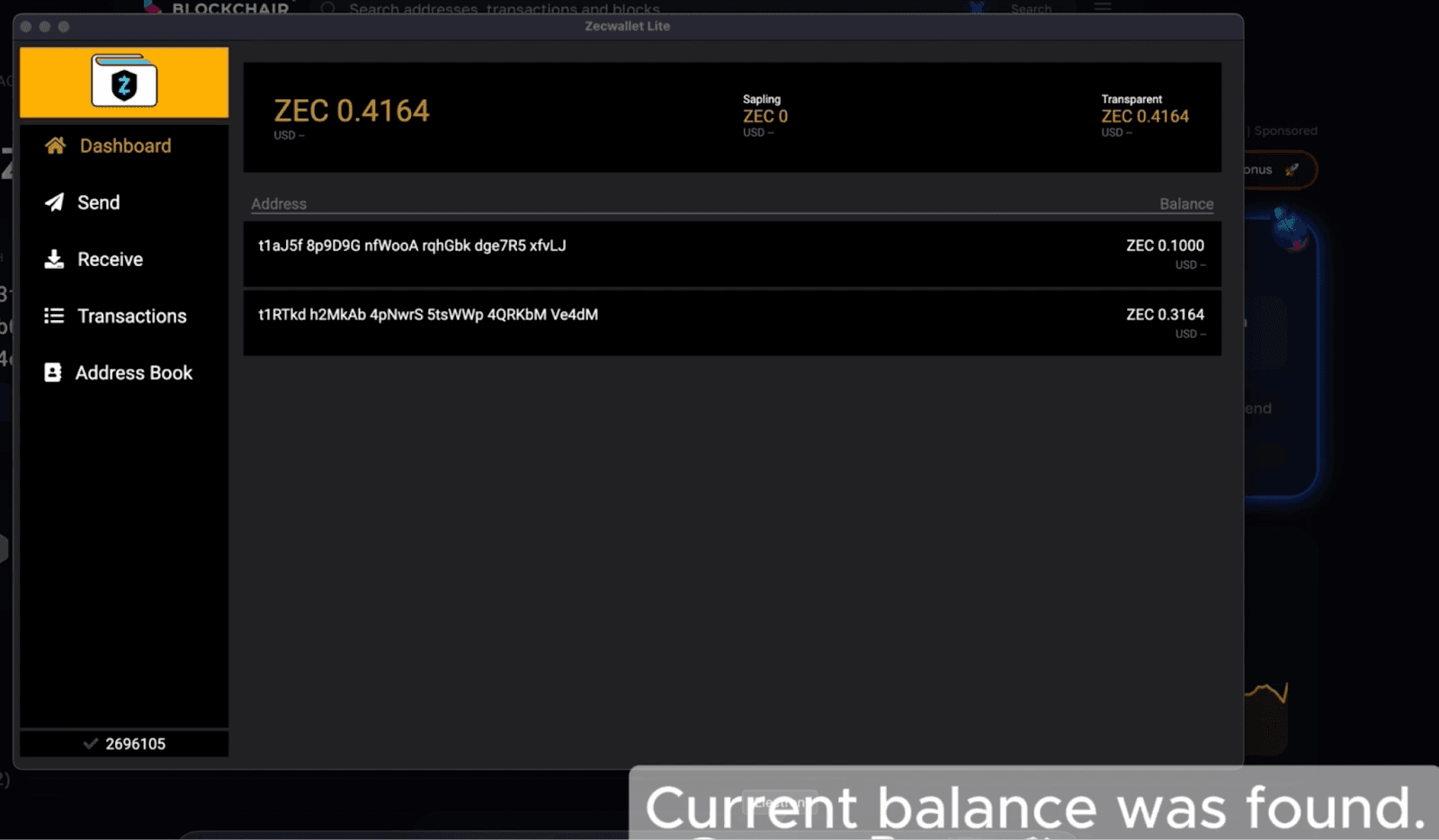
Moving Funds Back to the Original Address
28. Transfer Funds (Optional): To move funds back, locate the original address in Ledger Live, The one you wanted to move your funds to in the first place (while the app crashed, and you could not do it), copy it, and paste it into Zecwallet's “Send” section. Enter the amount and send.
29. Confirm on Your Device: Use your Ledger to approve the transaction. Once completed, you’ll see a confirmation message in Zecwallet.
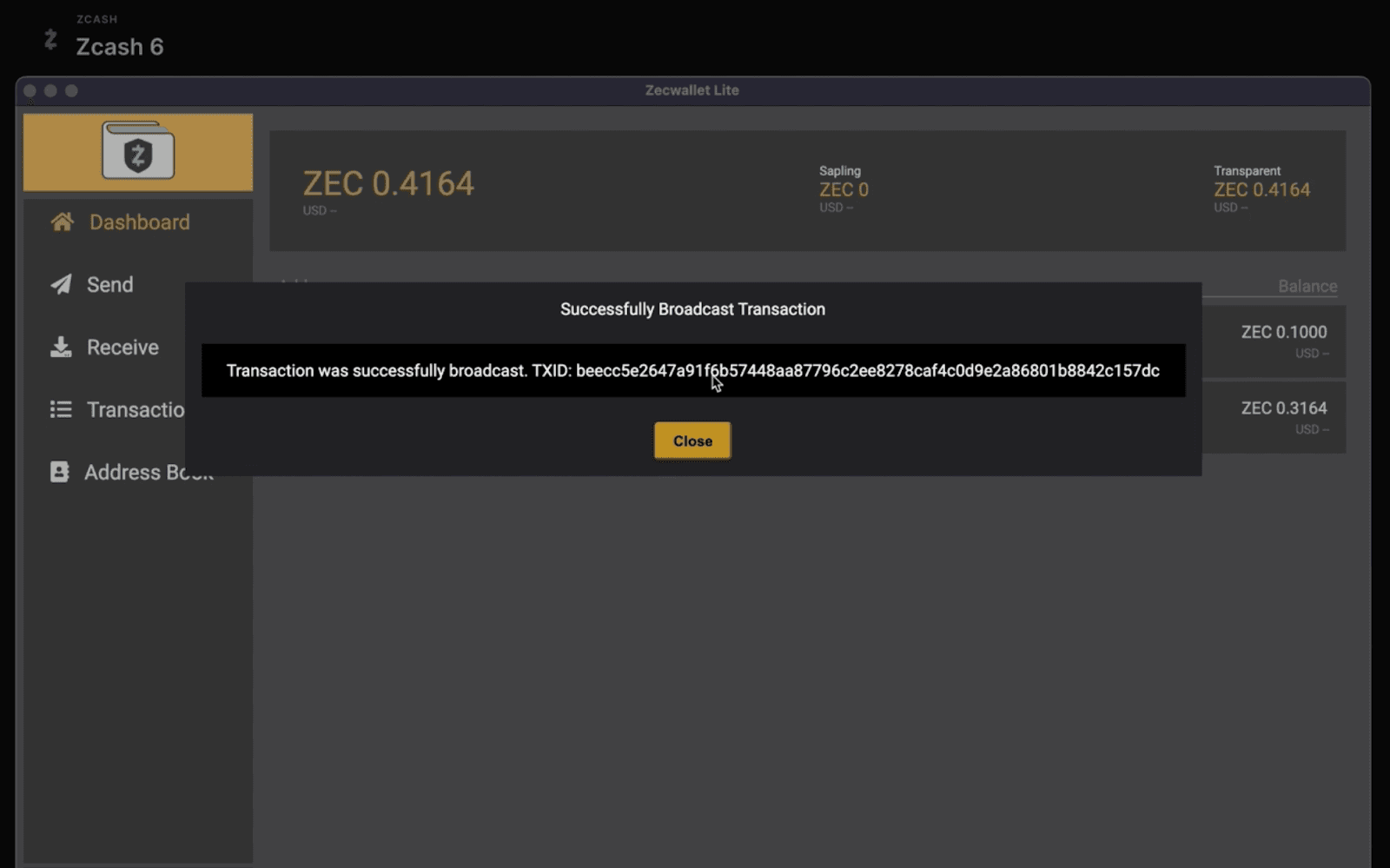
30. Verify on the Explorer: Copy the transaction ID and paste it into the Explorer for confirmation.
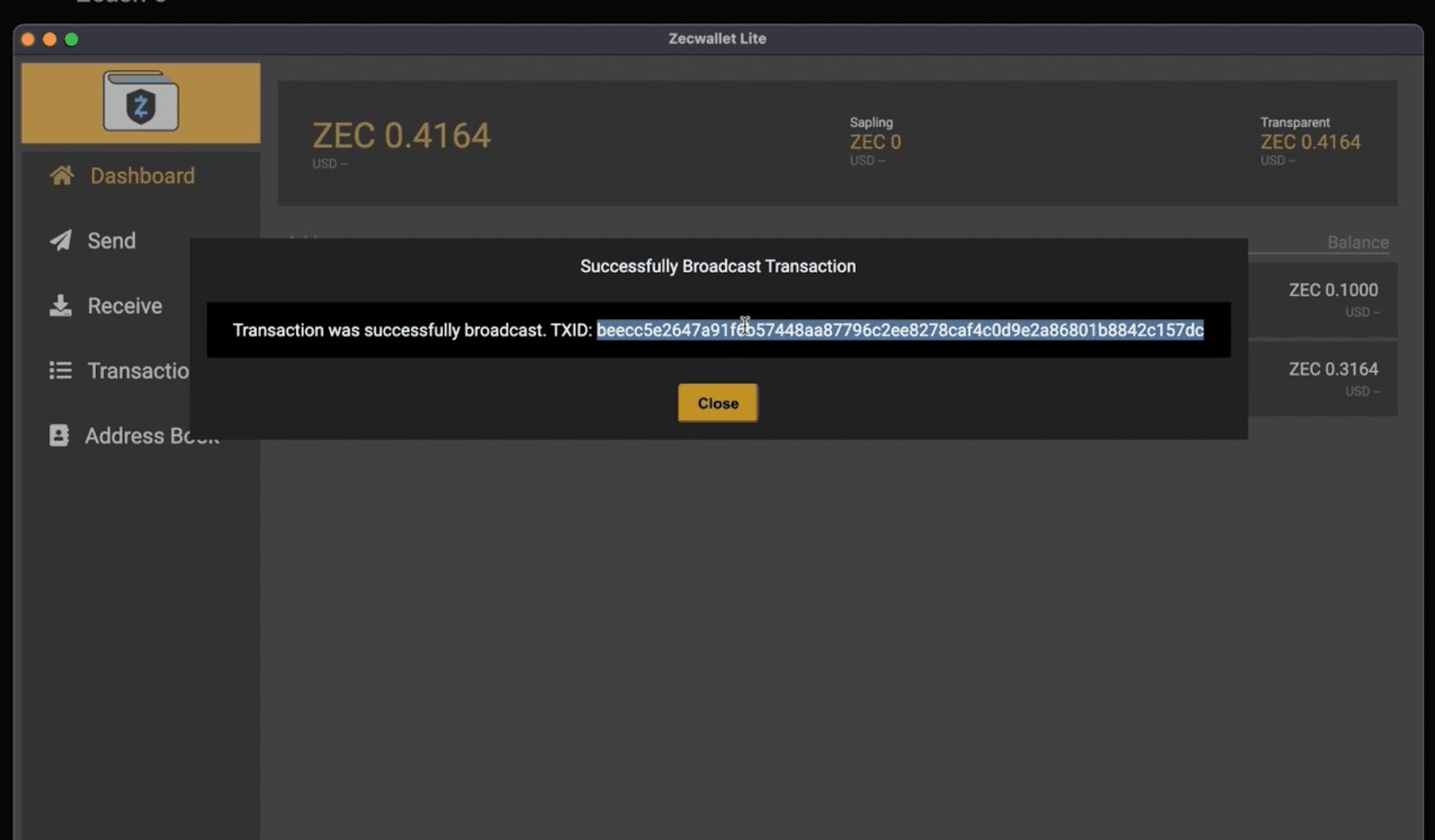
31. Wait until confirmed
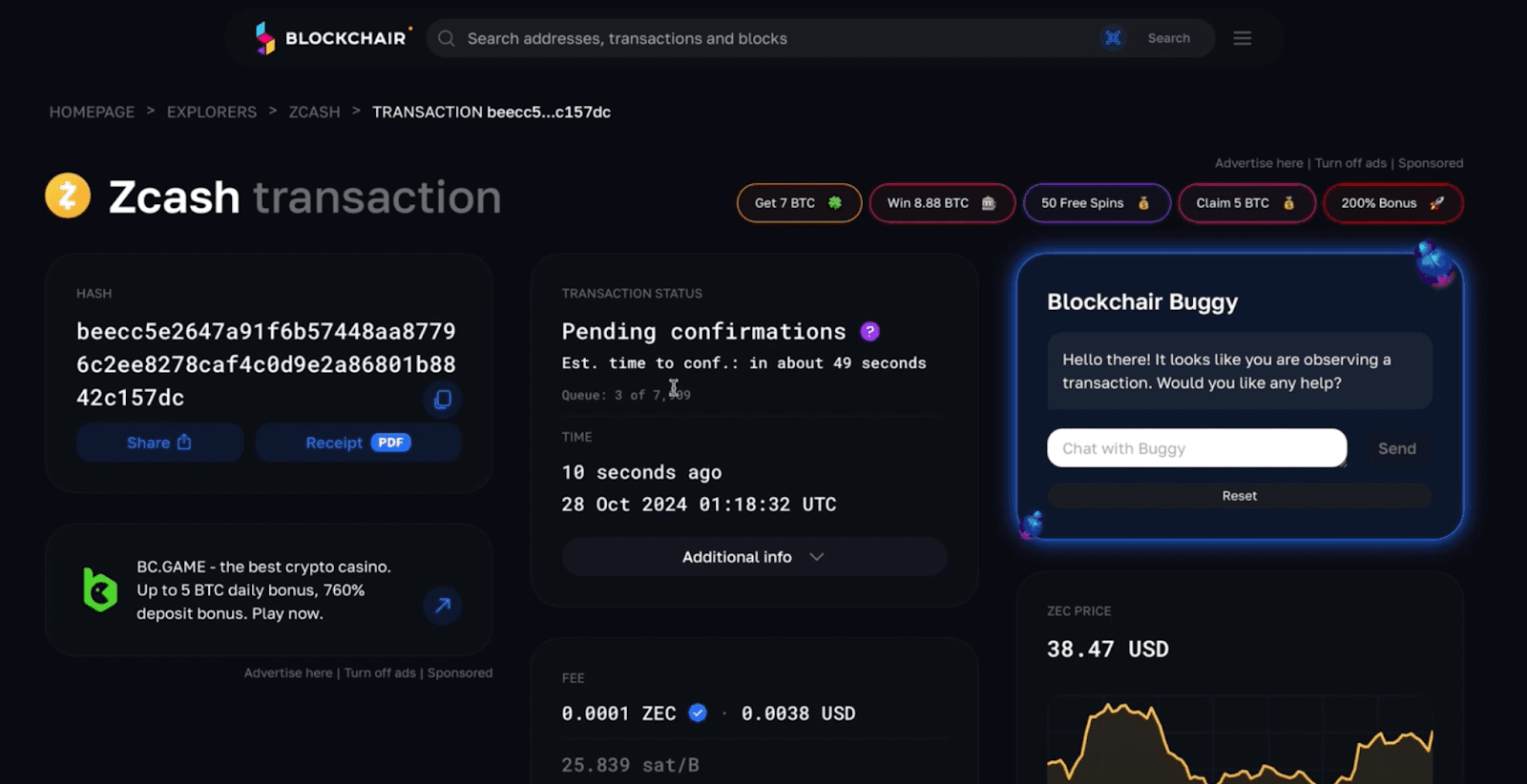
32. Check Updated Ledger Balance: Once the transaction confirms, review your Ledger balance to see the updated amount.
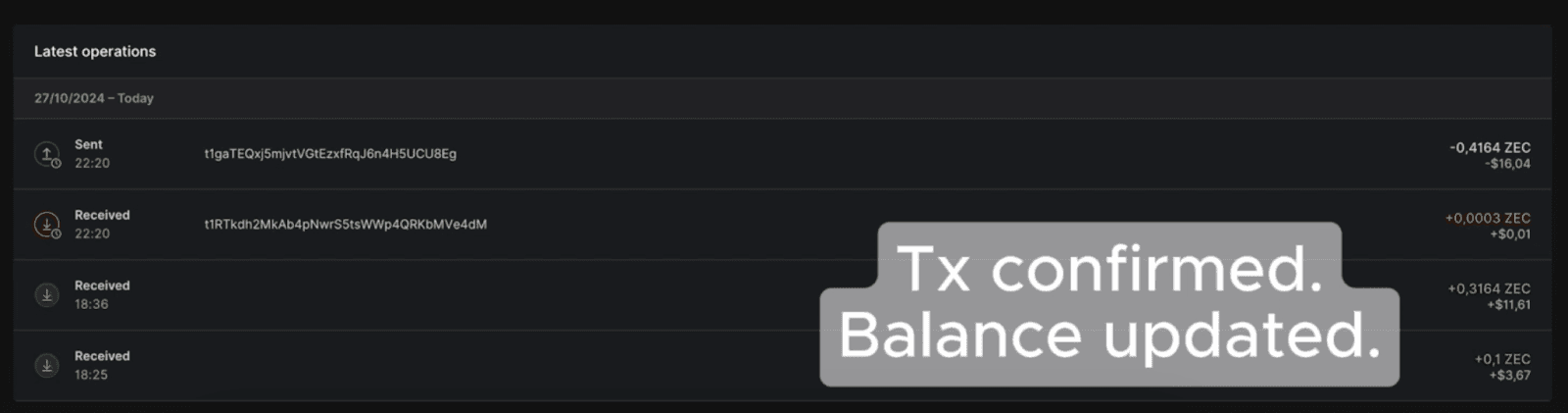
And that’s it! You’ve successfully unlocked and managed your Zcash funds with the Shielded App on Ledger.
This might feel a bit technical, but following these steps gives you full control over your Zcash with peace of mind. Now you’re ready to enjoy the privacy and security that Zcash offers—happy transacting!
Read More
Experiencing LaBitConf: An evening of Crypto, and the Argentinian Community
LaBitConf set the stage for our side event with Filecoin Orbit at Crypster Club. Nearly 50 attendees enjoyed Web3 talks, games, and Argentine treats like fernet and medialunas. Insights from Filecoin and Zondax made it memorable.
How to Simplify Your Node Management with ICP Push Metrics: An Interview
Zondax engineer Raul introduces ICP Push Metrics, a project simplifying ICP node management by enabling nodes to push metrics securely without firewall changes. Learn how this innovation improves security and efficiency, and explore its potential impact on the ICP developer community.
Polkadot Ledger App Updated with ECDSA and 20-Byte Address Support
The Polkadot Universal App for Ledger devices has just been updated to support Ethereum-style 20-byte addresses and ECDSA signatures, significantly improving compatibility with emerging Substrate-based chains like Mythos.
Other Articles
News
November 22, 2024
Filecoin’s Tuk Tuk upgrade boosts security, enables faster transactions, enhances smart contract functionality, and improves randomness access, making the network more secure, efficient, and user-friendly.
News
October 21, 2024
Zondax engineer Raul introduces ICP Push Metrics, a project simplifying ICP node management by enabling nodes to push metrics securely without firewall changes. Learn how this innovation improves security and efficiency, and explore its potential impact on the ICP developer community.
Security
July 3, 2024
The new Polkadot app is here! Use the Migration App on Ledger to easily transfer your funds from your existing account to a new account with the updated Polkadot app.
News
Zondax engineer Raul introduces ICP Push Metrics, a project simplifying ICP node management by enabling nodes to push metrics securely without firewall changes. Learn how this innovation improves security and efficiency, and explore its potential impact on the ICP developer community.
Security
The new Polkadot app is here! Use the Migration App on Ledger to easily transfer your funds from your existing account to a new account with the updated Polkadot app.
